

What Is a Screenshot on Mac?
screenshot on a Mac is a digital image of everything displayed on your screen or a selected portion of it. Screenshots are useful for saving information, creating tutorials, sharing visuals with colleagues, or keeping a record of important content. Macs come with built-in screenshot tools that allow users to capture full screens, specific windows, or customized areas without needing third-party software. Understanding how to take screenshots efficiently can help save time and streamline your workflow.
Using Keyboard Shortcuts to Take Screenshots
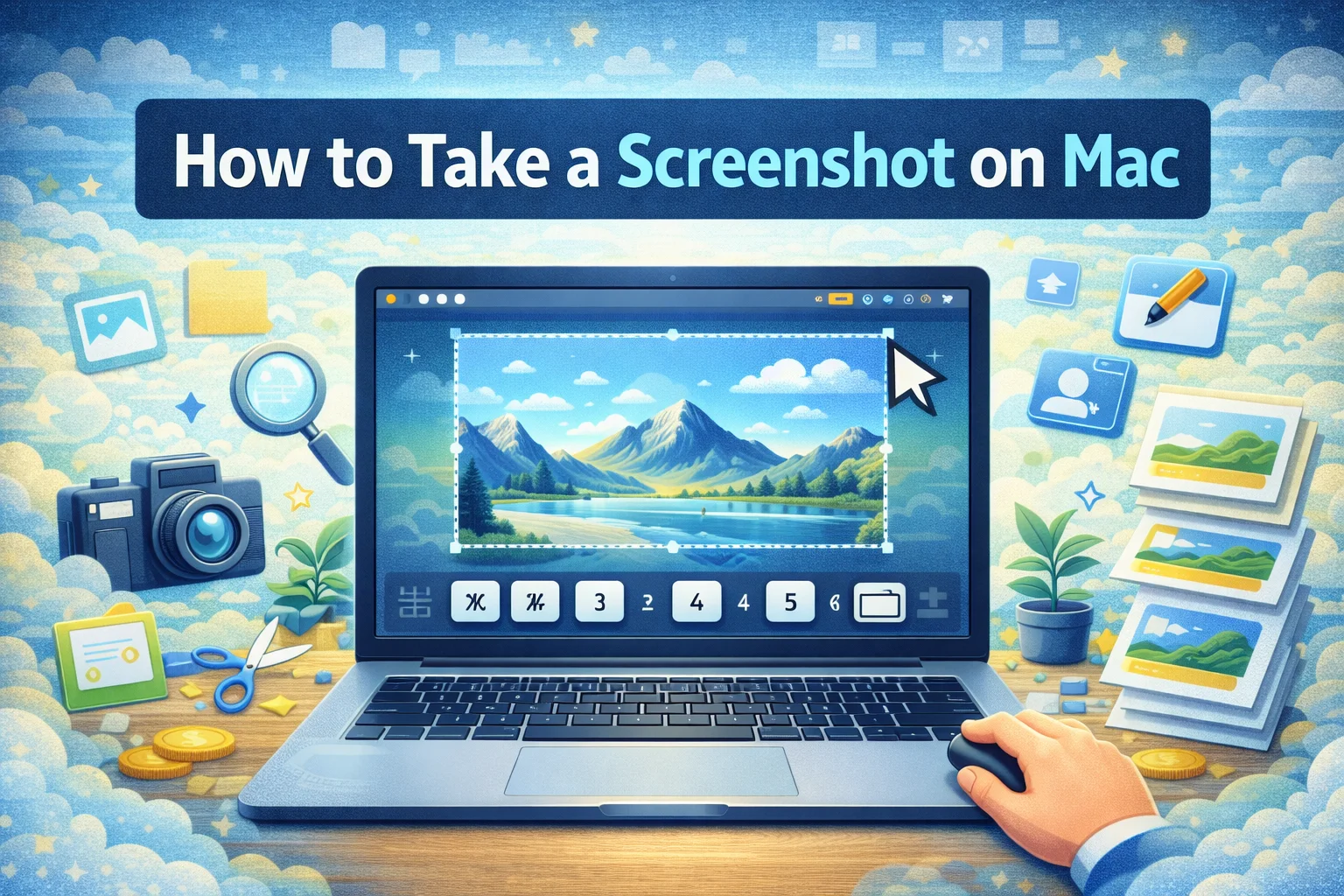
The fastest way to take a screenshot on a Mac is by using keyboard shortcuts. To capture the entire screen, press Command + Shift + 3, and the screenshot will be saved to your desktop. For a selected area, press Command + Shift + 4, then drag the cursor to highlight the portion of the screen you want to capture. You can also capture a specific window by pressing Command + Shift + 4 followed by the Spacebar, then clicking on the window. These shortcuts allow for quick and precise screenshot captures in any situation.
Using the Screenshot Toolbar on Mac
Macs running newer versions of macOS also include a screenshot toolbar, which can be accessed by pressing Command + Shift + 5. This toolbar provides multiple capture options, including full screen, selected area, or a specific window. It also allows you to record your screen for video tutorials or demonstrations. The toolbar provides additional settings such as choosing where to save screenshots, setting a timer, or showing the cursor in recordings. Using this tool simplifies capturing complex screenshots and makes it easy to manage multiple options.
Saving and Editing Screenshots on Mac
By default, screenshots on Mac are saved to the desktop with the date and time in the file name. You can organize them into folders for easy access and rename them to identify their content. macOS also includes basic editing tools that allow you to crop, annotate, or add text to your screenshots immediately after taking them. These editing features are helpful for creating guides, presentations, or sharing clear and professional-looking visuals without additional software.
Using Preview and Third-Party Apps
Preview, the built-in image and PDF viewer on Mac, can open screenshots for further editing. It provides tools for resizing, annotating, and highlighting portions of the image. For users looking for more advanced features, third-party apps such as Snagit, Lightshot, or CleanShot X offer options like scrolling capture, cloud storage, and detailed annotations. These apps can be especially useful for professionals who need enhanced screenshot functionality or want to streamline sharing across platforms.
Tips for Efficient Mac Screenshots
To take screenshots efficiently on Mac, familiarize yourself with keyboard shortcuts and the screenshot toolbar. Keep your desktop organized by creating folders for screenshots or using tagging features. Use screenshots strategically in tutorials, reports, presentations, and collaboration with team members. Quick editing and annotation can enhance clarity and ensure your screenshots communicate the intended information effectively.
Mac Screenshot Pros and Cons
Built-in Mac screenshot tools offer the advantage of being fast, free, and integrated directly into the operating system. They provide multiple capture options and basic editing features without extra software. However, some limitations include fewer advanced features such as scrolling screenshots or cloud integration compared to third-party apps. Despite these limitations, the built-in tools are sufficient for most personal and professional needs.
Conclusion: Mastering Screenshots on Mac
Mastering screenshots on a Mac is simple once you learn the keyboard shortcuts, toolbar options, and editing features. Whether capturing a full screen, a selected area, or recording your screen for tutorials, these tools help save time and create clear visuals. For beginners and professionals alike, screenshots are essential for communication, documentation, and sharing information efficiently.
FAQs
1. How do I take a screenshot of the entire screen on a Mac?
Press Command + Shift + 3, and the screenshot will automatically be saved to your desktop.
2. Can I capture a specific window on my Mac?
Yes. Press Command + Shift + 4 + Spacebar, then click the window you want to capture.
3. Where are screenshots saved on a Mac?
By default, screenshots are saved to the desktop, but you can change the save location in the screenshot toolbar (Command + Shift + 5).
4. How can I edit a screenshot on Mac?
You can use the built-in editing tools after taking a screenshot or open it in Preview to crop, annotate, or add text.
5. Are there third-party apps for more advanced Mac screenshots?
Yes. Apps like Snagit, Lightshot, and CleanShot X offer scrolling capture, cloud storage, and advanced annotation features for professional use.